



How to Prevent Wrist Pain from Typing: Complete Ergonomic Guide (2026)
Typing is one of the most repetitive activities performed by modern office workers, programmers, writers, designers, and students. Many people spend six to ten hours per day using a keyboard, often without realizing how much stress this places on the wrists, hands, and forearms.

Over time, poor typing habits, awkward workstation setups, and prolonged computer use can lead to discomfort ranging from mild fatigue to more serious repetitive strain injuries. Wrist pain from typing is not only frustrating but can significantly affect productivity, concentration, and long-term musculoskeletal health.
The good news is that most typing-related wrist problems are preventable. By understanding how the wrist works, setting up a proper ergonomic workstation, and developing healthier typing habits, it is possible to work at a computer for long periods while keeping the hands relaxed and pain-free.
This comprehensive guide explains everything you need to know about preventing wrist pain while typing. You will learn the science behind typing injuries, how to optimize your workstation, proper typing posture, effective daily routines, and long-term strategies to protect your wrists throughout your career.
Why Typing Causes Wrist Pain
To understand how to prevent wrist pain, it is important to understand why typing can cause discomfort in the first place. The wrist is a complex joint composed of multiple bones, ligaments, tendons, and nerves working together to enable precise finger movements.

When you type, your fingers repeatedly flex and extend while your wrist stabilizes these movements. Although each individual keystroke requires minimal force, thousands of repetitions throughout the day can accumulate stress on the tendons and surrounding tissues.
Repetitive Strain
One of the most common causes of typing-related wrist discomfort is repetitive strain. Repetitive strain occurs when muscles and tendons are used repeatedly without sufficient recovery time. Over time, microscopic inflammation can develop within the tendons responsible for finger movement.
These tendons pass through narrow structures in the wrist, including the carpal tunnel. If swelling occurs, pressure may build within this confined space, which can lead to pain, tingling, or numbness.
Poor Wrist Alignment
Ideally, the wrist should remain in a neutral position while typing. Neutral alignment means the wrist is straight rather than bent upward, downward, or sideways.
Unfortunately, many people type with the wrists extended upward due to keyboards that are positioned too high or desks that are not adjusted properly. This position places additional stress on the tendons and compresses structures inside the wrist.
Desk Edge Pressure
Another overlooked factor is pressure against the edge of a desk. When the wrists rest directly on a hard desk edge, localized pressure may compress nerves and blood vessels, leading to discomfort over time.
Medical References
Research from leading medical institutions explains that repetitive hand movements and prolonged wrist pressure may contribute to nerve compression and tendon irritation in the wrist.
The Ideal Ergonomic Typing Setup
Preventing wrist pain begins with creating a workstation that supports natural body alignment. Even the best typing technique cannot compensate for a poorly arranged desk or improperly positioned keyboard.

Keyboard Height
The keyboard should generally be positioned at or slightly below elbow height. When the keyboard is too high, the wrists must bend upward, which increases strain on the tendons.
Keeping the keyboard lower allows the forearms to remain parallel to the floor while the wrists stay neutral.
Chair Height
Chair height plays a crucial role in typing ergonomics. If the chair is too low, the user must lift the shoulders and bend the wrists upward. If the chair is too high, the wrists may bend downward.
Ideally, elbows should remain close to the body and form an angle between 90 and 110 degrees.
Monitor Position
Although monitor position does not directly affect the wrists, it influences overall posture. If the monitor is too low, users tend to lean forward, which can shift arm positioning and create additional tension in the forearms.
Workstation Ergonomic Guidelines
Detailed ergonomic workstation recommendations can be found in the following occupational safety resources:
Correct Typing Posture
Maintaining proper posture while typing is one of the most effective ways to reduce wrist strain. Posture determines how force is distributed throughout the arms and hands.

Neutral Wrist Position
The wrists should remain straight rather than bent. A neutral wrist position reduces tension within the tendons that move the fingers.
When the wrist bends excessively upward or downward, these tendons must glide through tighter spaces, increasing friction and irritation.
Relaxed Shoulders
Shoulder tension can indirectly contribute to wrist discomfort. If the shoulders are raised while typing, muscles in the forearms may tighten as well.
Supported Forearms
The forearms should rest lightly on the desk or armrests rather than being suspended in the air. Proper support allows the wrists to remain relaxed during typing.

Ergonomic Research
Typing posture recommendations are also supported by ergonomic research from:
Typing Techniques That Reduce Wrist Strain
Beyond posture and workstation setup, typing technique also influences wrist health. Many people unknowingly type with excessive force or tension, which increases strain over time.
Use Light Keystrokes
Typing should involve minimal force. Pressing keys harder than necessary does not improve accuracy but does increase stress on finger tendons.
Avoid Wrist Hovering
Some typists hold their wrists in the air while typing, believing this improves ergonomics. In reality, prolonged hovering can fatigue the forearm muscles that stabilize the wrist.
Keep Fingers Relaxed
Finger movements should be quick and relaxed rather than rigid. Excessive tension can transfer strain into the wrist joint.
Common Typing Mistakes That Cause Wrist Pain
| Mistake | Why It Causes Pain | Better Alternative |
|---|---|---|
| Keyboard too high | Forces wrist extension | Lower keyboard to elbow level |
| Resting wrists on desk edge | Creates pressure on nerves | Use padded wrist support |
| Typing with bent wrists | Increases tendon friction | Maintain neutral wrist position |
| Typing without breaks | Causes repetitive strain | Take regular microbreaks |
Daily Wrist Stretches for People Who Type
Stretching is one of the simplest and most effective ways to reduce tension in the muscles and tendons used during typing. Because typing involves repetitive finger movements, the muscles in the forearm can gradually tighten throughout the day. Gentle stretching helps restore normal length to these muscles and improves circulation to the hands and wrists.

Regular stretching also helps prevent stiffness that can accumulate after long computer sessions. The goal is not to perform aggressive stretches but to gradually release tension and maintain mobility in the wrist joint.
Wrist Flexor Stretch
The wrist flexor muscles are located on the inside of the forearm and are heavily used when typing. Stretching these muscles can help relieve tightness caused by repeated keystrokes.
- Extend one arm in front of you with the palm facing upward.
- Use your other hand to gently pull the fingers downward.
- Hold the stretch for 15–20 seconds.
- Repeat on the opposite arm.
Wrist Extensor Stretch
The extensor muscles on the outer forearm help lift the fingers and stabilize the wrist during typing. These muscles can also become tight during long periods of computer work.
- Extend one arm in front of you with the palm facing downward.
- Gently pull the fingers downward toward the floor.
- Hold for 15–20 seconds.
- Switch sides and repeat.
Wrist Rotation
Rotational movements help maintain joint mobility and improve circulation around the wrist joint.
- Extend your arms forward.
- Slowly rotate your wrists clockwise for 10 seconds.
- Then rotate counterclockwise.
- Repeat several times.
Strengthening Exercises for Long-Term Wrist Protection
While stretching helps reduce tension, strengthening exercises improve the resilience of the muscles and tendons involved in typing. Strong forearm muscles support the wrist joint and reduce the likelihood of overuse injuries.
These exercises should be performed slowly and with controlled movements. If any exercise causes pain, it should be stopped immediately.
Grip Strength Exercise
Grip strengthening helps build endurance in the muscles used to stabilize the wrist during typing and mouse use.
- Hold a soft stress ball or grip trainer.
- Squeeze slowly and hold for five seconds.
- Release gradually.
- Repeat for 10 repetitions.
Wrist Curl Exercise
Wrist curls strengthen the muscles responsible for wrist stability and finger control.
- Hold a light dumbbell or water bottle.
- Rest your forearm on a desk or table.
- Slowly curl the wrist upward.
- Lower it back down in a controlled motion.
Reverse Wrist Curl
Reverse curls strengthen the extensor muscles that help balance the forearm.
- Rest your forearm on a surface with the palm facing downward.
- Hold a light weight.
- Lift the wrist upward slowly.
- Lower it gently back to the starting position.
These strengthening exercises can be performed three to four times per week as part of a long-term injury prevention routine.
The Microbreak System for Long Typing Sessions
Even with perfect posture and ergonomics, typing continuously for long periods can strain the wrists. Microbreaks are short pauses that allow muscles and tendons to recover before fatigue builds up.

Research in workplace ergonomics consistently shows that short, frequent breaks are more effective than occasional long breaks. Microbreaks help maintain circulation and prevent the buildup of muscle tension.
The 30-Minute Rule
A widely recommended strategy is the 30-minute rule. After approximately 30 minutes of continuous typing, take a short break lasting 30 to 60 seconds.
During this break you can stretch your wrists, roll your shoulders, or simply relax your hands away from the keyboard.
The 20-20-20 Variation
Another strategy combines eye and wrist protection. Every 20 minutes, look away from the screen for 20 seconds and relax your hands.
Why Microbreaks Work
Microbreaks interrupt repetitive motion patterns that contribute to repetitive strain injuries. They also improve circulation to the muscles that support the wrists and fingers.
Ergonomic Tools That Help Prevent Wrist Pain
While proper posture and healthy habits are essential, ergonomic accessories can further reduce strain during long typing sessions. These tools are designed to support natural hand alignment and reduce pressure on the wrists.

Ergonomic Keyboards
Ergonomic keyboards are designed to promote a more natural hand position. Some models use a split layout that allows the hands to rest at a comfortable angle rather than forcing them inward.
By reducing unnatural wrist angles, ergonomic keyboards can decrease muscle tension during extended typing.
Vertical Mice
Traditional computer mice require the forearm to rotate into a palm-down position. Vertical mice allow the hand to remain in a handshake position, which may reduce strain on the forearm muscles.
Wrist Rests
Wrist rests provide padded support for the wrists during pauses in typing. They help reduce pressure against hard desk edges and encourage a neutral wrist position.
High-quality wrist rests typically use memory foam or gel padding to distribute pressure evenly. When used correctly, they can improve comfort and reduce fatigue during long typing sessions.

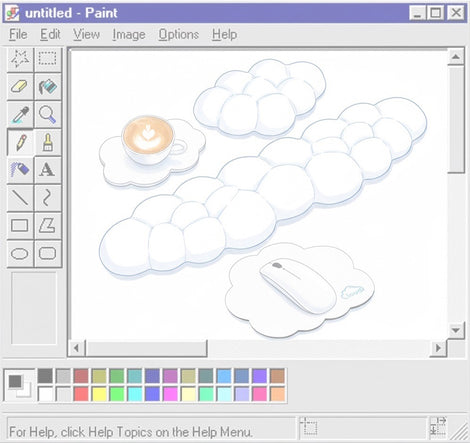
Cloud Tenkeyless Wrist Rest Set — PU Leather & Memory Foam
Tenkeyless keyboard palm support built from soft memory foam with a PU leather cover — designed to reduce wrist strain while keeping your desk tidy and colorful. Ideal for compact (TKL) setups and laptop users who want ergonomic palm support without extra bulk.
- Ergonomic memory foam core for pressure relief
- Durable PU leather cover — easy to wipe clean
- Available in multiple colors (White, Rainbow, Pink, Blue, Green, Purple, Black)
- Non-slip base for secure positioning

Cute 4-in-1 Ergonomic Cloud Wrist Rest Set
Versatile 4-in-1 set for laptops and desktops — combines memory foam comfort, PU leather durability, and anti-slip design. Designed for users seeking multi-device support and extra pressure relief.
- 4 pieces to suit laptop, full keyboard, mouse, and tenkeyless setups
- Ergonomic contouring to support natural wrist posture
- Soft PU leather with easy cleaning
- Anti-slip base and lightweight portability
Note: products sold by Sushret. Click any card to view full specs, real photos, and current pricing on the product page.
Desk Edge Supports
Some ergonomic setups include desk-edge forearm supports. These devices allow the forearms to rest comfortably while typing, reducing the need for muscle tension that can lead to fatigue.
The 5-Minute Daily Wrist Protection Routine
A short daily routine can dramatically improve wrist health for people who type frequently. This routine takes only a few minutes but helps maintain flexibility, circulation, and muscle balance.
Step 1: Wrist Warm-Up
Begin by gently rotating your wrists in circular motions for about 20 seconds. This warms up the joint and prepares the muscles for movement.
Step 2: Flexor Stretch
Perform a wrist flexor stretch on each arm for 15 seconds. This reduces tightness that may have developed during previous typing sessions.
Step 3: Extensor Stretch
Stretch the outer forearm muscles using the wrist extensor stretch described earlier.
Step 4: Grip Activation
Squeeze a stress ball or gently close your fists several times to activate the muscles in the hand and forearm.
Step 5: Posture Reset
Finally, check your workstation posture. Make sure your keyboard is positioned at elbow height, your wrists are neutral, and your shoulders remain relaxed.
Typing Ergonomics Checklist
- Keyboard positioned at or slightly below elbow height
- Wrists maintained in a neutral position
- Forearms supported on desk or armrests
- Monitor positioned at eye level
- Shoulders relaxed while typing
- Short breaks taken every 20–30 minutes
- Regular wrist stretching performed
- Typing performed with light keystrokes
- Ergonomic accessories used when necessary
Reviewing this checklist periodically can help ensure that your workstation and typing habits remain healthy over time.
Early Warning Signs of Wrist Injury
Recognizing early warning signs of wrist strain is essential for preventing more serious injuries. Many repetitive strain injuries develop gradually and may begin with mild symptoms that are easy to ignore.
Common Early Symptoms
- Persistent wrist stiffness
- Occasional tingling in the fingers
- Weak grip strength
- Burning or aching sensations in the forearm
- Numbness in the thumb or index finger
If these symptoms occur frequently, it is important to evaluate your workstation ergonomics and typing habits.
Ignoring early signs of strain can lead to conditions such as tendonitis or carpal tunnel syndrome, which may require medical treatment.
If you already experience discomfort, you may want to read our guide on why your wrist hurts when typing .Frequently Asked Questions
Can typing cause wrist pain?
Yes. Repetitive typing can strain the muscles and tendons in the forearm and wrist, especially when performed with poor posture or inadequate breaks.
What is the best wrist position when typing?
The best wrist position is neutral. This means the wrist should remain straight rather than bent upward, downward, or sideways.
How often should I take breaks while typing?
Many ergonomics experts recommend taking a short break every 20 to 30 minutes to stretch or relax the hands.
Do wrist rests actually help?
When used properly, wrist rests can reduce pressure against hard desk surfaces and help maintain a comfortable typing posture.
Can typing lead to carpal tunnel syndrome?
Prolonged repetitive typing combined with poor ergonomics may contribute to carpal tunnel syndrome in some individuals.