




Laptop Stand Guide: Benefits, Ergonomics, Materials & Correct Setup
Quick pitch: A laptop stand can reduce neck and shoulder strain, improve cooling and video-call framing, and increase productivity — but only when it’s used correctly. This evidence-focused guide walks you through who benefits, when a stand won’t help, how to set one up properly, material tradeoffs, mistakes to avoid, and a short checklist so readers can decide in 90 seconds.
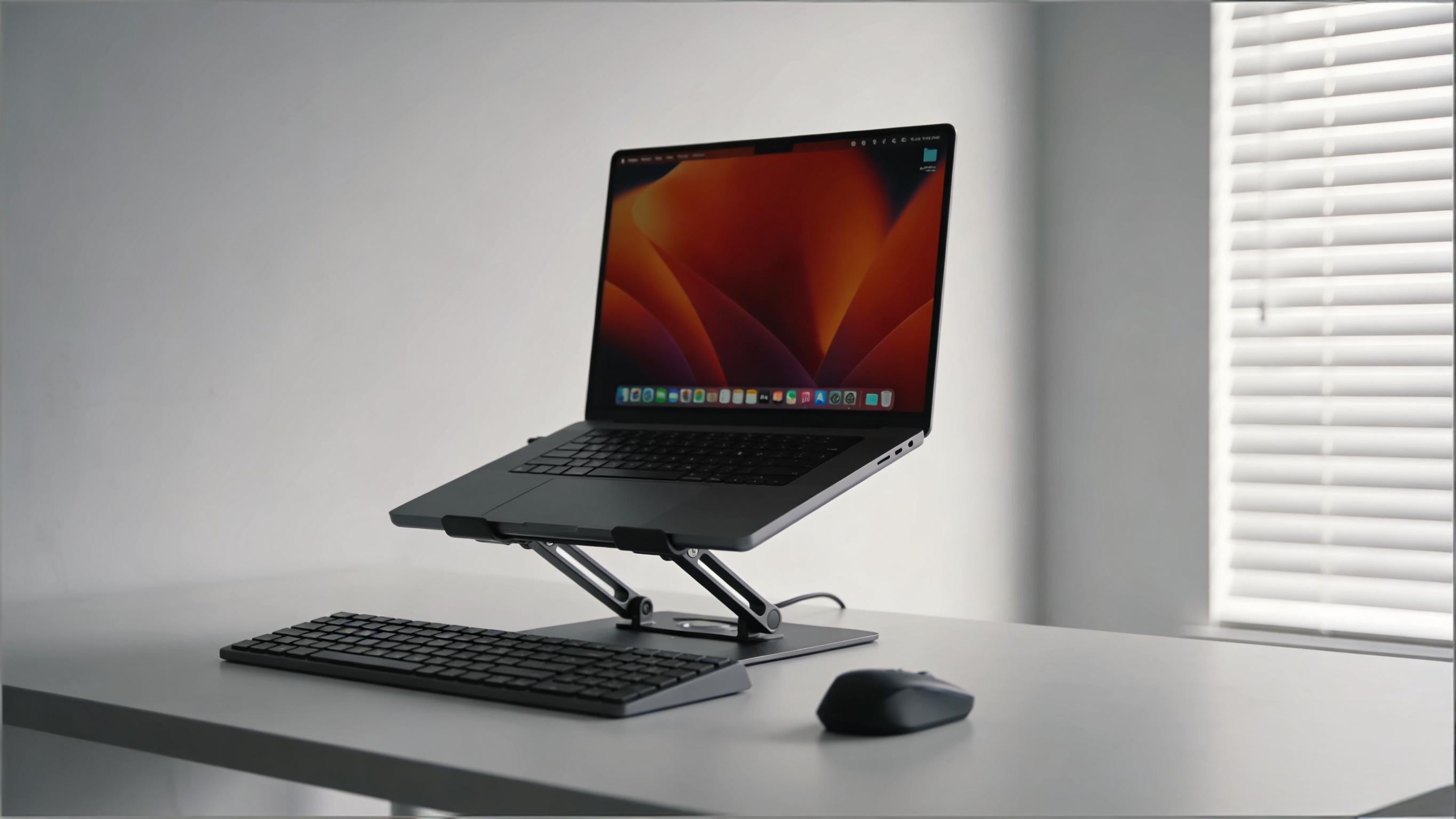
What problem does a laptop stand actually solve?
Most long-term laptop discomfort stems from screen height mismatch. A laptop on a flat desk places the screen below natural eye level, producing forward head posture and sustained neck/upper-back muscle load. A laptop stand solves one primary ergonomic problem: it raises the screen closer to eye level so your head and neck can remain in a more neutral position.
Tip: a stand fixes the screen position — not keyboard posture. You usually need an external keyboard and mouse to capture the full ergonomic benefit.
Who benefits from a laptop stand?
A laptop stand is most likely to help if you meet two or more of these criteria:
- You use a laptop for 2+ hours per day.
- You do heavy reading, writing, coding, or video meetings.
- You experience neck, shoulder or upper-back tension after work sessions.
- You are willing to use an external keyboard and mouse.
Common use-case profiles
- Remote worker / office professional: high benefit from adjustable metal stand + external keyboard.
- Student: foldable portable stand helps for long study sessions.
- Designer & developer: heavy-duty stand with excellent stability recommended.
- Traveler / hybrid worker: ultralight foldable models for backpack portability.
When a laptop stand may not help (and can even worsen problems)
Counterintuitive truth: A laptop stand can be counterproductive if you do not change other parts of your setup. The stand is a tool, not a cure.
- Still using the built-in keyboard: raising the screen without an external keyboard forces awkward arm postures.
- Poor chair height: if the chair is too low, raising the screen makes you look up, increasing shoulder elevation.
- Using the laptop on a bed/sofa: the unstable base and reclined posture negate stand benefits.
- Wrong stand height: fixed stands that don’t reach your eye level may produce a worse neck angle than before.
Before buying, test whether you can pair the stand with an external keyboard and adjust your chair — if not, a stand alone is unlikely to help.
Real benefits (mechanism → result)
Reduced neck & shoulder load
Raising the screen reduces sustained forward head posture, decreasing chronic tension in the neck and upper trapezius muscles. Over weeks this can reduce pain frequency and perceived fatigue.
Improved visual comfort & focus
Eye-level screens reduce the need to tilt or squint, improving reading comfort and allowing longer focused sessions.
Better device cooling & sustained performance
Open-frame and metal stands improve passive airflow under the laptop, which can reduce surface temperatures and help prevent thermal throttling during heavy workloads.
Improved video-call framing
An elevated webcam places your face near eye level, improving perceived eye contact and producing a more professional video-call appearance.
Common laptop stand mistakes that cancel the benefits
The difference between a helpful stand and a useless one is often how it's used. The mistakes below are frequently repeated across forums and product reviews:
- Only raising the screen but still typing on the laptop: the wrists and shoulders remain in awkward positions.
- Not adjusting the chair after raising the screen: proper head-eye alignment requires chair + screen alignment.
- Placing the stand on soft surfaces: beds or sofas make your base unstable and increase slouching.
- Blocking ventilation with accessories: placing papers or a desk pad under vents can increase laptop temperature despite the stand.
- Buying for looks, not load capacity: decorative stands may wobble during typing and reduce confidence and productivity.
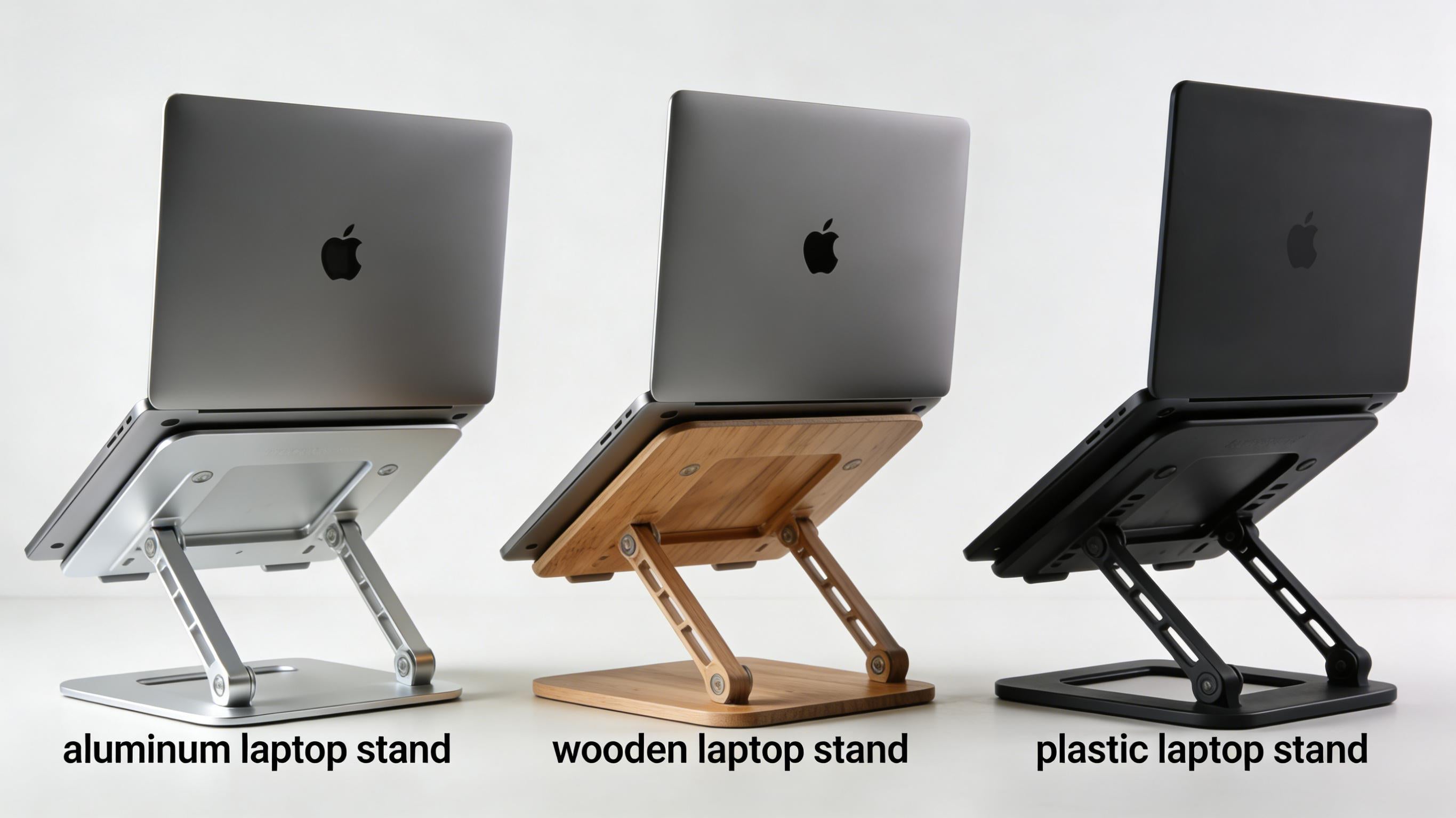
Common Types of Laptop Stands
Laptop stands come in several designs, each suited to different work styles, environments, and ergonomic needs. Understanding these types helps you choose a stand that actually improves comfort and productivity, rather than just lifting your screen.
Adjustable Laptop Stands
Adjustable laptop stands allow you to change height and viewing angle, making them ideal for long work sessions and shared workspaces. They offer the greatest ergonomic flexibility and are commonly recommended for office and home-desk setups.
Fixed-Height Laptop Stands
Fixed laptop stands maintain a single height and angle. While less flexible, they are often more stable and minimalist, suitable for users with a consistent desk setup and external keyboard usage.
Portable & Foldable Laptop Stands
Portable laptop stands are lightweight and collapsible, designed for travel, remote work, and cafés. They prioritize mobility over maximum adjustability but still help improve screen position on the go.
Vertical Laptop Stands
Vertical laptop stands hold a closed laptop upright, freeing desk space and supporting multi-monitor setups. These are best for users who rely primarily on external displays and peripherals.
Cooling Laptop Stands
Cooling laptop stands focus on airflow and heat dissipation. Some rely on passive ventilation, while others incorporate fans to help manage thermal performance during intensive tasks.
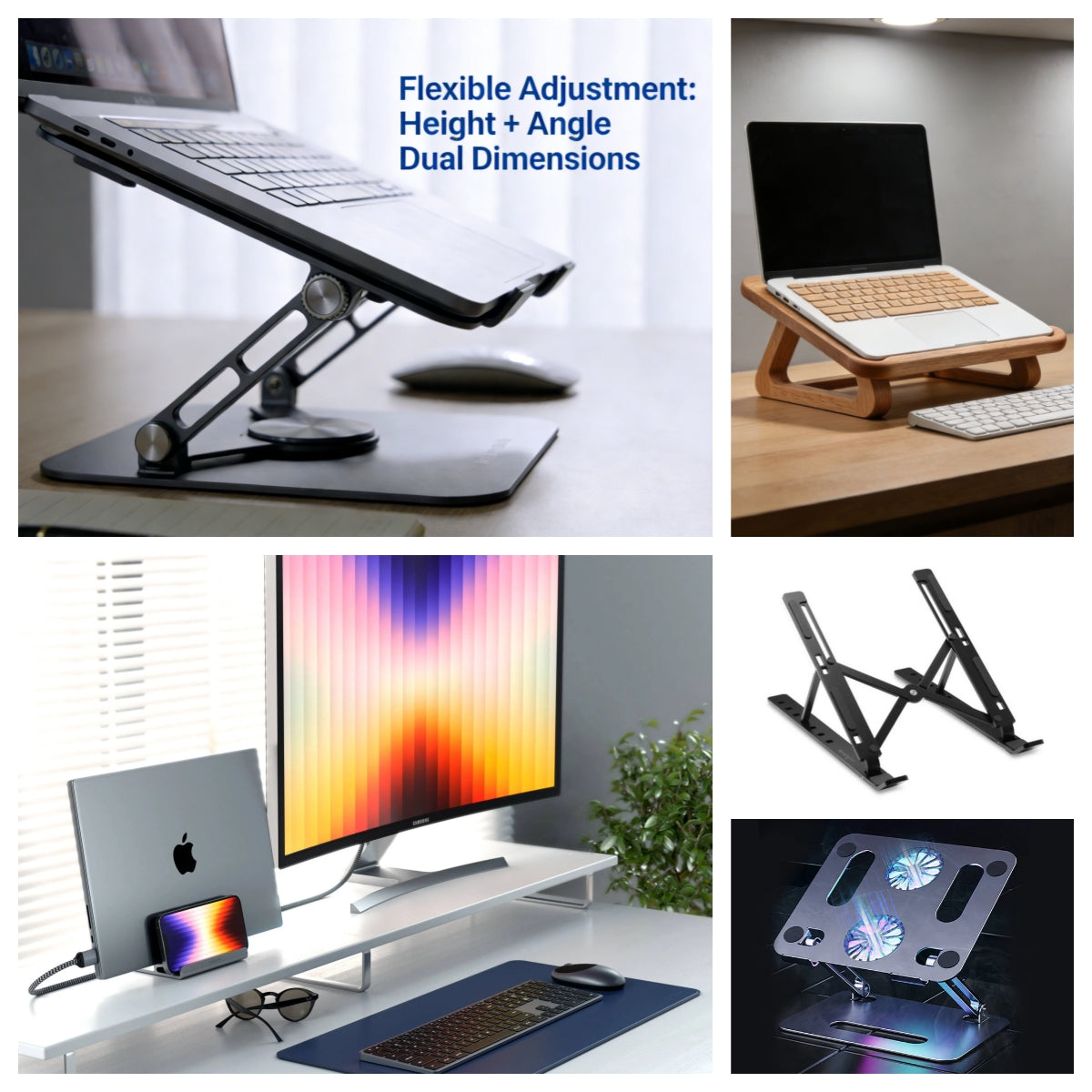
Laptop stand anatomy: features that actually matter
When evaluating a stand, prioritize the functional features below (in this order):
- Height adjustability: ability to set the top of the screen at or slightly below eye level.
- Stability / load capacity: must support your laptop weight without wobble.
- Ventilation / open design: unblocked vents and open contact surfaces allow airflow.
- Angle/tilt control: reduces glare and helps short-duration touch interactions.
- Rubber grips & edge stops: prevent slippage and protect laptop finish.
- Portability / foldability: for commuting and hybrid workers.
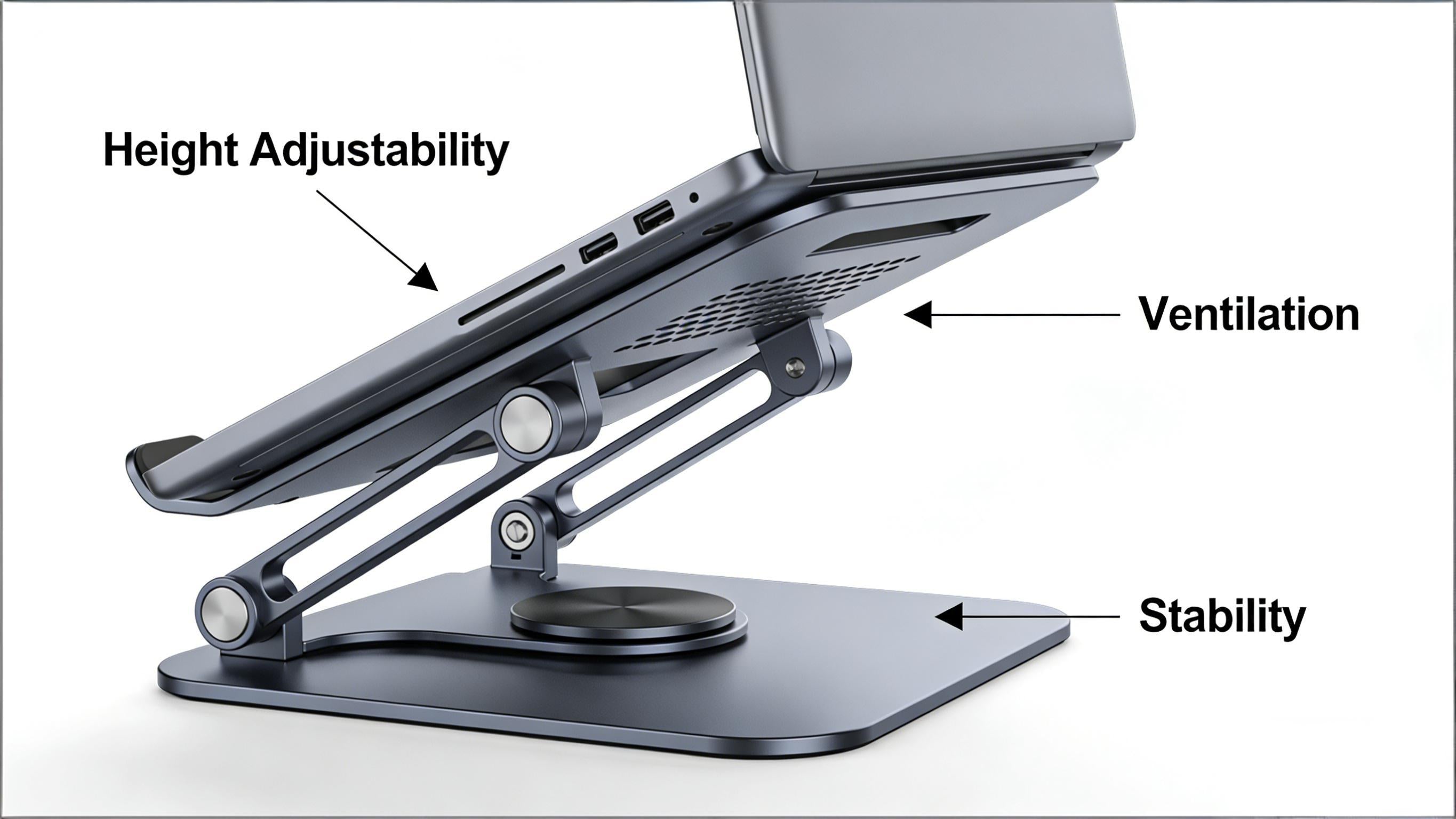
Materials comparison: how material affects stability, cooling and portability
| Material | Strengths | Limitations | Best for |
|---|---|---|---|
| Aluminum | Lightweight, durable, conducts heat (helps passive cooling) | Higher price; can show scratches | Daily desk users who want cooling + portability |
| Steel | Very stable; high load capacity | Heavy; less portable | Fixed workstations, heavy laptops |
| Bamboo / Wood | Eco aesthetic, warm finish | Lower thermal conductivity; can warp in humidity | Home office, design-first desks |
| Plastic / Polymer | Low cost, very lightweight | Less rigid; may flex when typing hard | Travel and budget buyers |
How to set up a laptop stand correctly (step-by-step)
Follow these steps in order. The sequence matters.
- Set your chair first: feet flat, knees ~90°, lumbar support set.
- Place the laptop on the stand and lift: raise until the top of the screen is at or just below eye level.
- Connect an external keyboard and mouse: keep them close so elbows remain near 90°.
- Tilt the screen as needed: reduce glare; the screen should sit in the center of your vision.
- Confirm vents are unobstructed: maintain ~1–2 cm clearance under the laptop in open-frame designs.
- Test for wobble: press the corner gently—if it moves, adjust or pick a more stable stand.
- Micro-breaks: every 30–45 minutes stand or do a 30-second neck/shoulder roll.
2-minute decision checklist: do you need a laptop stand?
Answer yes to two or more of the items below → a laptop stand will likely help you:
- I use a laptop 2+ hours/day.
- I have neck or shoulder discomfort after work sessions.
- My laptop screen sits below my eye level.
- I attend frequent video calls and want better framing.
- I’m willing to use an external keyboard and mouse.
If you answered “no” to most of the above, consider a lightweight, portable stand or hold off until usage increases.
FAQ
Is a laptop stand worth it?
Yes — but only when used as part of an entire ergonomic setup (external keyboard & mouse and correct chair height). A stand alone helps screen position but not wrist posture.
Will a laptop stand make my laptop run cooler?
Open-frame and metal stands improve passive airflow and can reduce surface temperatures, which helps with sustained performance. Active cooling stands include fans for extra heat removal.
Can a laptop stand prevent neck pain entirely?
No — it reduces a major contributing factor (screen height). Comprehensive ergonomic care also includes chair adjustment, keyboard/mouse position, posture habits, and breaks.
Which material should I choose?
Choose aluminum for a balance of cooling, portability and durability. Pick steel for maximum stability, wood for aesthetics, and plastic for budget portability.
How much should I spend?
Expect to pay between $20–$120 depending on adjustability and material. Invest more if you need heavy-duty stability and fine height adjustment for daily prolonged use.
References & further reading
For detailed manufacturer guidance and ergonomics explanations, consult: