




USB Hub vs Docking Station: A Complete Technical & Practical Guide for Modern Workstations
Modern laptops are thinner, lighter, and more powerful than ever—but they come with a major compromise: fewer physical ports. As manufacturers prioritize portability, many essential connections have quietly disappeared. Ethernet ports, HDMI outputs, SD card readers, and even basic USB-A ports are often removed entirely.
To bridge this gap, most users turn to either a USB hub or a docking station. On the surface, these two accessories appear interchangeable. Both connect to your laptop using a single cable. Both promise to “expand” connectivity. Both are marketed as productivity boosters.
However, choosing the wrong one can introduce serious limitations that only become obvious after prolonged use:
- External monitors failing to wake or displaying at reduced resolution
- Laptops draining battery despite being “plugged in”
- Random USB disconnects during file transfers or video calls
- Bandwidth congestion that silently slows professional workflows
This guide is designed to prevent those problems.
Instead of repeating shallow definitions, we explain how USB hubs and docking stations actually work at a system level, why their limitations exist, and how to choose the correct solution based on real-world usage patterns—not marketing claims or product listings.
Quick Answer (Featured Snippet)
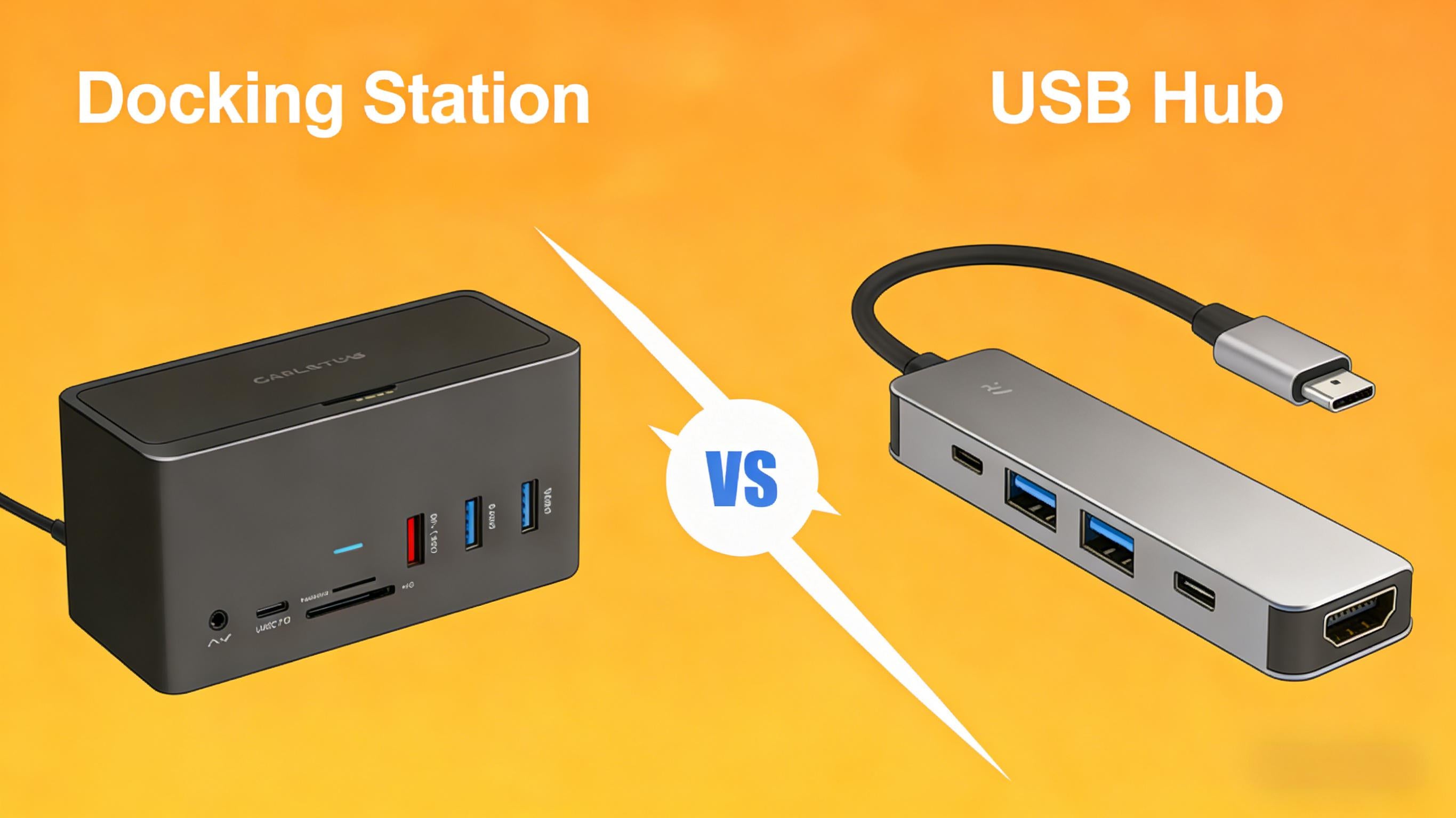
A USB hub expands a laptop’s available USB ports and is best suited for lightweight, portable setups involving low-power peripherals. A docking station, by contrast, is designed to convert a laptop into a full desktop workstation by providing external monitors, higher power delivery, Ethernet, and expanded I/O through a single cable.
The Fundamental Difference Most People Miss
The most important distinction between a USB hub and a docking station is not price, size, or brand reputation. It is design intent.
USB hubs are built for device sharing.
Docking stations are built for system extension.
A USB hub assumes your laptop is already functioning as intended and simply needs additional access points for peripherals. A docking station assumes something more radical: that your laptop will temporarily or permanently replace a traditional desktop computer.
This assumption drives fundamental engineering differences:
- How bandwidth is allocated
- How displays are driven
- How power is regulated and delivered
- How stable long-term connections are maintained
Once you understand this philosophical split, nearly every limitation—or advantage—of each device becomes intuitive.
What Is a USB Hub?
A USB hub is a compact accessory that multiplies a single USB connection into multiple downstream ports. Historically, USB hubs existed long before USB-C laptops, but their role has expanded as laptops have shed native connectivity.
From a technical perspective, a USB hub is fundamentally a signal splitter. It does not create new bandwidth, processing power, or display pipelines. Instead, it divides the bandwidth provided by the host USB controller.
Typical USB Hub Features
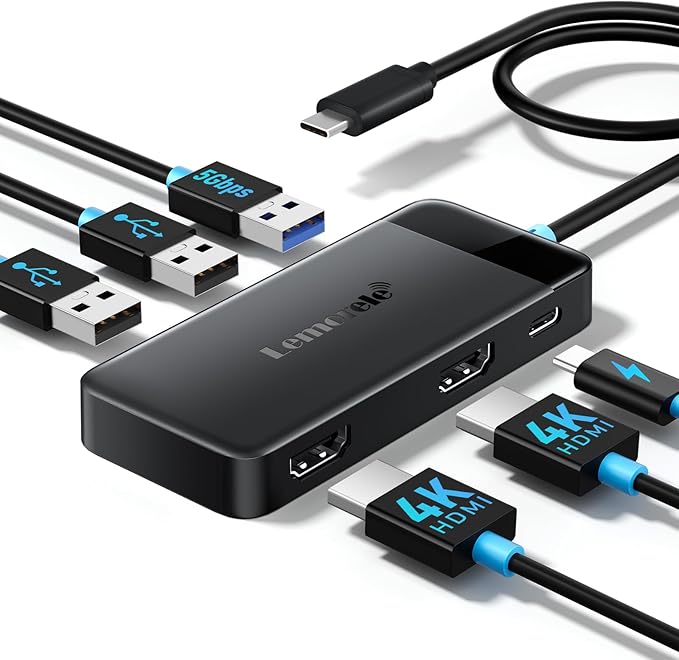
- 2–7 USB-A or USB-C data ports
- Optional HDMI or VGA video output
- SD or microSD card reader
- Basic USB-C power passthrough
How USB Hubs Handle Data
All devices connected to a hub share the same upstream connection to the laptop. This means that a webcam, external SSD, keyboard, and HDMI display are all competing for bandwidth over a single USB link.
For low-speed devices, this is rarely noticeable. For high-throughput tasks—such as transferring large files while driving a display—performance degradation is inevitable.
Where USB Hubs Excel
USB hubs are optimized for mobility and convenience rather than raw capability. They shine in situations where:
- You need a lightweight accessory for travel
- You work temporarily from cafés, hotels, or shared spaces
- You connect mostly low-power peripherals
Where USB Hubs Fall Short
Because hubs are constrained by a single data and power pipeline, they struggle with:
- Multiple high-resolution external monitors
- Sustained power delivery during CPU- or GPU-intensive tasks
- Professional workflows involving large data transfers
What Is a Docking Station?
A docking station is a centralized connectivity platform designed to transform a laptop into a desktop-class workstation.
Rather than merely splitting a USB signal, a docking station integrates multiple dedicated controllers—each responsible for specific functions such as video output, networking, audio, and power management.
Modern docking stations commonly rely on high-bandwidth connection standards such as Thunderbolt and USB4, while some USB-based docks use DisplayLink technology to support additional displays and peripheral connectivity over standard USB connections.
What Docking Stations Typically Provide
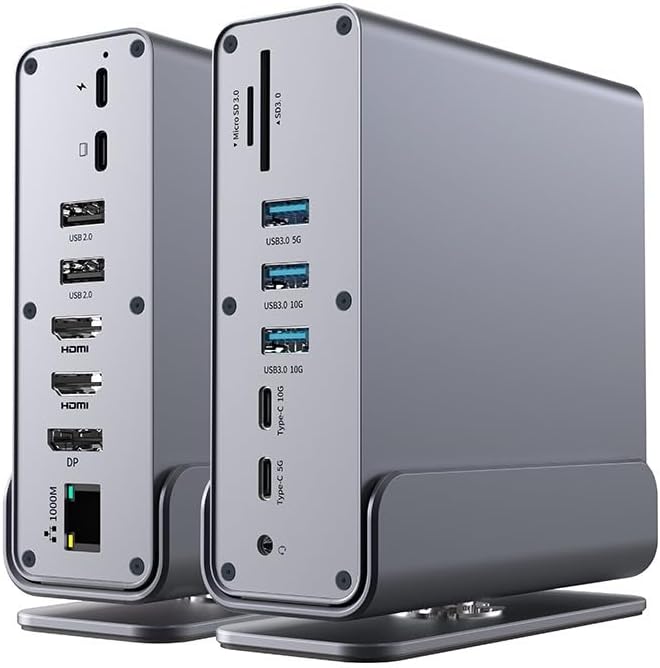
Modern docking station with multiple display outputs, Ethernet, USB ports, and high-wattage power delivery.
- Support for one to three external monitors
- High-wattage Power Delivery (60W–100W+)
- Dedicated Gigabit or multi-gigabit Ethernet
- Multiple USB ports with consistent power output
- Audio input/output and legacy ports
Why Docking Stations Are More Stable
Docking stations are designed for fixed or semi-fixed environments. This allows manufacturers to include:
- Better power regulation components
- Thermal management solutions
- Firmware-level coordination between subsystems
The result is a device that remains stable under continuous daily use—often for years.
Key Technical Differences Explained
Bandwidth Allocation
USB hubs operate within the limits of a single USB bus. When multiple high-speed devices are connected, performance must be shared.
Docking stations—particularly Thunderbolt-based models—provide dramatically more bandwidth (up to 40Gbps), enabling simultaneous high-resolution displays, fast storage, and network connectivity without congestion.
Controller Architecture
Most hubs rely entirely on the laptop’s internal controllers. Docking stations, by contrast, often contain their own:
- Display controllers
- Network interfaces
- Audio codecs
This reduces strain on the host system and improves overall reliability.
External Display & Monitor Limitations
Display support is the single most misunderstood area when comparing hubs and docks.
Many USB-C hubs advertise HDMI outputs, but this alone does not guarantee support for dual monitors or high resolutions.
Why Most USB Hubs Only Support One Monitor
Without Thunderbolt or MST (Multi-Stream Transport), a USB-C connection using DisplayPort Alt Mode can typically drive only one external display.
Even when two HDMI ports are present, they often mirror the same signal.
Many USB-C hubs advertise HDMI output, but a physical HDMI port alone does not guarantee multi-monitor or high-refresh-rate support. The USB-C port must support DisplayPort Alt Mode to transmit video signals. Without this support, the hub may have an HDMI port but it will not function for external displays.
Additionally, if your laptop has multiple USB-C ports but only one supports video output, plugging the hub into a non-video port will result in a black screen or no signal. Users often overlook this distinction, causing unnecessary troubleshooting and confusion.
Practical tip: Always verify which USB-C port supports video on your laptop, and ensure your hub or dock is connected to that port to reliably drive monitors.
Docking Stations and Multi-Monitor Setups
Docking stations are engineered specifically for multi-display environments. Thunderbolt docks can support dual 4K displays—or even higher—depending on the host GPU and operating system.
Power Delivery & Charging Reality
Power delivery is another critical divider.
Many USB hubs advertise “100W PD passthrough,” but this figure represents the maximum input, not the power actually delivered to your laptop.
After internal losses, laptops may receive significantly less—sometimes insufficient for heavy workloads.
Docking stations are designed to deliver stable, sustained power under load, ensuring that performance does not degrade during demanding tasks.
Compatibility: macOS, Windows & Chipsets
Compatibility issues are rarely caused by the hub or dock itself. They arise from mismatches between:
- Laptop chipsets
- Operating system limitations
- Display technologies
macOS Limitations
Many Apple Silicon MacBooks natively support only one external display. Multi-monitor setups typically require DisplayLink-based docking stations.
Windows & MST Support
Most modern Windows laptops support MST, making dual-monitor docking solutions more straightforward.
Always verify port capabilities, display output support, charging limits, and bandwidth specifications through USB-IF documentation and your laptop manufacturer’s official technical specifications.
Real-World Compatibility Notes
Different devices and brands have varying support for Type-C hubs and docks. For example, some mobile laptops or ultrabooks may only support power and data over USB-C, but not video output. This can cause hubs to fail in driving external displays, even if the physical ports exist.
Before using any hub or dock, check your device's official specifications to ensure the USB-C port supports the intended functions—video output, data transfer, and power delivery.
Real-World Use Cases
Frequent Travelers
USB hubs are ideal due to their compact size and minimal setup requirements.
Home Office Professionals
Docking stations reduce cable clutter, streamline desk setups, and improve daily efficiency.
Creative & Technical Users
Video editors, developers, and engineers benefit significantly from docking stations due to multi-monitor and storage needs.
Troubleshooting & Common Real-World Issues
When using USB hubs or docking stations, users often encounter practical issues that are not obvious from marketing claims. Many problems stem from port capability, protocol support, or connection order. Here are the most common problems and practical solutions.
1. Determining if a Type-C Port is Full-Function
Not every USB-C port supports full functionality. A port that only supports charging or basic data transfer cannot drive external displays or multiple peripherals simultaneously.
- Power-Only (PD): Can only charge the device, no data or video.
- Data-Only: Supports USB hub functionality but cannot output video.
- Full-Function Type-C: Supports power, data, and video.
- Thunderbolt / USB4: Provides higher bandwidth for multiple displays, fast storage, and networking.
When external displays or network connections fail, confirm whether your USB-C port is full-function before troubleshooting the hub or dock.
2. No Display or No Audio on External Monitor
Users sometimes connect external monitors via HDMI and find no video or audio. Common causes include the display not supporting audio, incorrect input selection, or incompatible protocols.
- Audio Output Issue: Some monitors have no built-in speakers, so even if video works, audio will not.
- Incorrect Input Source: Ensure the monitor is set to the correct HDMI input channel.
- HDMI vs VGA: VGA does not transmit audio.
Check your computer’s audio output device settings to ensure audio is routed to the correct monitor or dock.
3. PD Charging Works but Other Ports Fail
If PD charging works but USB, HDMI, or Ethernet ports stop functioning, it may be a compatibility issue with the hub or dock.
Recommended procedure:
- Disconnect the hub/dock from your laptop.
- Remove all peripherals from the hub/dock.
- Connect the hub/dock to the laptop first.
- Connect the PD charger to the hub/dock after it is connected to the laptop.
- Reconnect other peripherals one by one.
4. External Hard Drives Not Recognized
Some external drives require more power than a bus-powered hub can provide, especially when PD charging is not active.
Solutions:
- Ensure the hub/dock is receiving PD power to increase bus power.
- Try connecting the drive to a different USB port.
- Test the drive directly on the laptop to confirm the drive itself is functional.
How to Choose: Practical Decision Checklist
- Do you need more than one external monitor?
- Do you require full-speed charging through one cable?
- Is portability more important than performance?
- Does your laptop support Thunderbolt or USB4?
If you answered “yes” to the first two questions, a docking station is almost always the correct choice.
Common Myths & Misconceptions
-
Myth: All USB-C hubs support dual monitors.
Reality: Most do not. While many USB-C hubs advertise HDMI or DisplayPort outputs, true multi-monitor support requires either Thunderbolt, USB4, or MST (Multi-Stream Transport) capability. Without these technologies, attempting to connect two external monitors often results in mirrored displays, reduced resolution, or no signal at all. Users should always check whether their hub and laptop support full video output before purchasing for multi-monitor setups. -
Myth: Docking stations are only for offices.
Reality: Docking stations benefit home users as much as office professionals. Beyond clearing cable clutter, docks allow home offices to use multiple monitors, connect high-speed storage, or integrate wired networks—all from a single connection. For remote workers, creatives, and gamers, docking stations provide a desktop-level experience without needing a traditional desktop PC. -
Myth: USB hubs and docking stations are interchangeable.
Reality: Hubs and docks solve different problems. Hubs primarily add more USB ports for devices like keyboards, mice, or thumb drives. Docking stations expand the entire system with external displays, Ethernet, higher wattage power delivery, and additional peripheral ports. Using a hub when a dock is needed can lead to insufficient power, bandwidth bottlenecks, or unsupported display configurations. -
Myth: Any USB-C cable works for a dock or hub.
Reality: Cable quality and standard matter. USB-C cables differ in power delivery capability, data transfer rates, and support for video signals. Using a low-quality or power-only cable can prevent your hub or dock from functioning correctly. Always use the cable supplied with your dock or a certified high-speed cable rated for Thunderbolt/USB4. -
Myth: Connecting too many devices will damage the laptop.
Reality: Modern laptops have protection circuits that prevent overcurrent damage. The main risk is performance degradation due to bandwidth sharing, not hardware damage. However, consistently connecting high-power devices without sufficient power delivery may result in slower charging or intermittent disconnects.
Helpful Guides for a Complete Workstation Setup
Choosing the right USB hub or docking station is essential for a modern workstation, but a truly efficient desk setup also depends on comfort, posture, and device positioning. Below are related guides that help you optimize other key aspects of your workspace.
Monitor Stand & Arm Ergonomics Guide
Proper screen height alignment reduces neck and upper-back strain during long hours at your desk.
Laptop Stand Benefits & Setup
Elevate your laptop to improve viewing angles and support ergonomic posture.
Desk Cable Management Without Drilling
Keep your USB hub cables and peripherals neatly organized and cable clutter-free.
Frequently Asked Questions
Is a USB hub the same as a docking station?
No. A USB hub primarily expands the number of USB ports for peripherals like keyboards, mice, and storage drives. A docking station extends the system’s capabilities, including multiple displays, wired network connectivity, high-wattage power delivery, and other specialized ports. Understanding this distinction helps users choose the right tool for their needs.
Can a USB hub replace a docking station?
Only for basic, low-demand use cases. For example, if you only need to connect a keyboard, mouse, and a single USB drive, a hub is sufficient. However, for multi-monitor setups, high-speed storage, Ethernet connections, or sustained laptop charging, a dock is required. Using a hub in place of a dock for these scenarios may lead to performance issues or unsupported functionality.
Do docking stations slow down laptops?
No. When properly matched to your laptop’s ports and bandwidth capabilities, docking stations often improve workflow efficiency. By offloading display, network, and peripheral processing to the dock’s internal controllers, your laptop’s CPU and GPU are freed up for other tasks, resulting in more stable and efficient operation.
Why does my external monitor sometimes flicker or disconnect when using a hub?
Flickering or random disconnects are often caused by insufficient bandwidth or improper video protocol support. Most USB-C hubs share a single data pipeline, which can be overloaded if multiple high-speed devices are connected simultaneously. Using a Thunderbolt or USB4 docking station can resolve this issue, as these provide dedicated controllers and higher bandwidth for multiple peripherals and monitors.
Can I charge my laptop fully through a USB hub?
Most USB-C hubs offer limited power delivery. Even if a hub advertises 100W PD passthrough, actual power delivered can be lower due to conversion losses. Docking stations, especially those designed for higher-wattage charging, can sustain full laptop charging even under heavy load.
Final Verdict
USB hubs and docking stations solve fundamentally different problems.
Understanding their architectural differences ensures you invest wisely, avoid unnecessary limitations, and build a workstation that truly supports how you work.
Choose based on real usage—not marketing language.